


If you’re asking why is my WordPress website slow, you’re not alone. Most business sites aren’t slow because WordPress is “bad”, they’re slow because one or two bottlenecks are doing all the damage. That could be cheap hosting pushing up TTFB (Time To First Byte), a theme or page builder shipping too much code, unoptimised images inflating LCP (Largest Contentful Paint), or plugins and third party scripts making the site feel heavy on mobile.
In 2026, performance matters more because users are less patient and search visibility is harder won. A slow site does not just frustrate people, it reduces enquiries, weakens paid campaign performance, and makes organic growth harder to sustain. If you want a site that loads quickly and feels responsive, you need to identify what is actually slowing it down, then fix it in the right order.
This post explains the 10 most common causes of a slow WordPress site and the practical fixes that improve real world speed, not just vanity scores.
Quick Answer
A WordPress site is usually slow because of slow hosting and high server response time, heavy themes or page builders, unoptimised images, too many or poorly coded plugins, and missing performance basics like page caching, a CDN, and code optimisation. Fix it by measuring Core Web Vitals, reducing TTFB, compressing and resizing images, removing plugin bloat, improving caching rules, and cleaning up database overhead. Prioritise LCP and INP improvements first because they most strongly affect perceived speed.
1) Slow hosting and high TTFB
When the server is slow to respond, every page load starts late. This is why you can have a fast looking site that still feels sluggish. The first thing to check is TTFB (Time to First Byte). If TTFB is consistently high, you will struggle to improve LCP and overall load time no matter how much you optimise the front end.
A common trigger is shared hosting, especially for business sites running heavy themes, eCommerce, or multiple plugins. On shared hosting you are competing for CPU and memory, and performance dips can happen without you changing anything. The same applies if your hosting stack is outdated, or if PHP and database resources are underpowered.
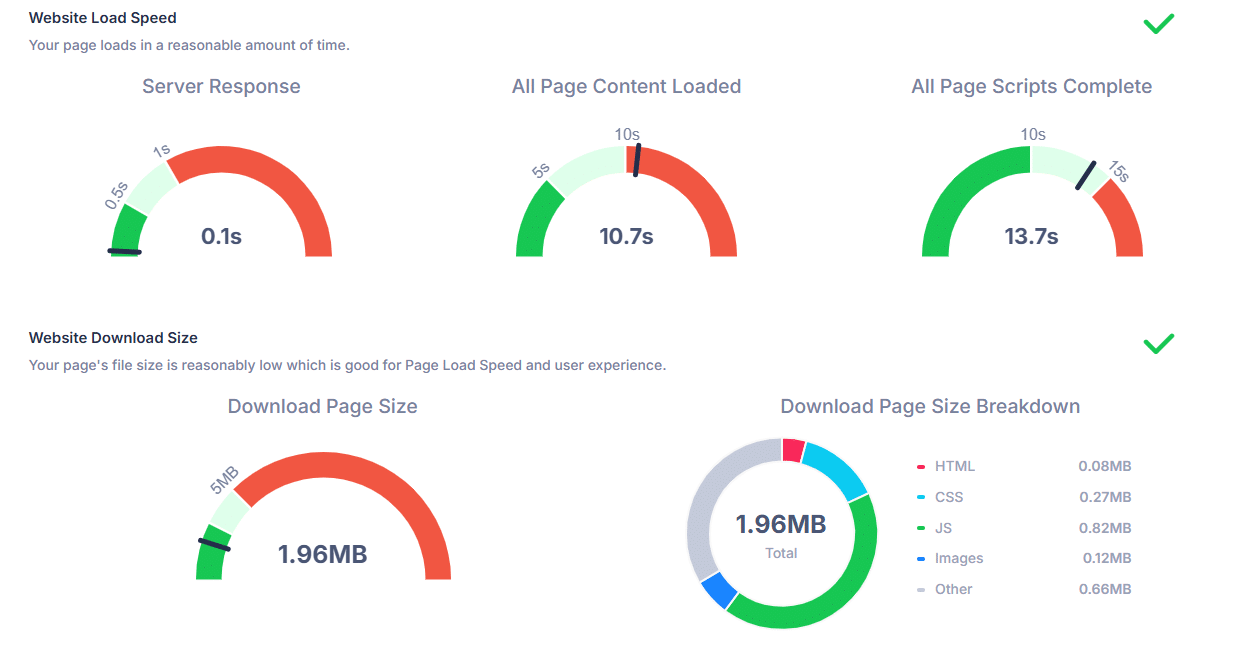
Practical fix: run Google PageSpeed Insights and look for warnings about initial server response time. If TTFB is your issue, the fastest improvement is usually a hosting upgrade to a properly resourced WordPress environment. In the UK, that often means managed WordPress hosting with sensible PHP limits, modern caching support, and performance tuned server configuration. If you rely on traffic spikes, choose infrastructure that can handle bursts without falling over.
2) Heavy themes that load too much by default
Many themes are designed to look impressive in a demo, so they ship with features most sites never use. The result is extra CSS, extra JavaScript, and extra font and icon files on every page. That directly slows down WordPress website slow to load complaints, because the browser has to download and process more before it can paint the page.
This often shows up as a slow Largest Contentful Paint (LCP), especially if the theme’s header, hero section, or animation system is bulky. It can also increase layout instability and visual jumps if spacing is not defined properly, which makes pages feel messy even when they are technically loading.
Practical fix: remove unused theme components, disable optional libraries, and keep global assets lean. If your theme offers a load assets only when used setting, turn it on and verify it is working. If the theme is fundamentally bloated, replacing it with a performance focused build is often cheaper than fighting it long term. A quick sanity check is to test a plain page template and compare it against your normal layout, if the plain template is dramatically faster, your theme is a major contributor.
3) Page builders and oversized page layouts
Page builders can be fine when used carefully, but they can also generate heavy markup and ship large front end scripts. The impact is usually worse on mobile, because mobile devices take longer to parse and execute JavaScript. This is one of the most frequent reasons people ask why is my WordPress site slow on mobile.
Large hero sliders, animation on scroll, multiple embedded sections, and complex grids make it harder for the browser to render quickly. Even if the page weight is not huge, a lot of scripts can block the main thread and delay interactions, which worsens responsiveness. That is how you end up with a site that loads, but still feels unresponsive for a second or two.
Practical fix: simplify above the fold design and treat the hero area as a performance budget. Use a static hero image or a lightweight background treatment rather than a slider, keep the first screen clean, and limit the number of scripts required to render it. If you need a builder, configure it so it does not load global assets on every page. Where possible, reserve heavy modules for specific landing pages rather than sitewide templates.
4) Too many plugins or the wrong plugins
The issue is not the number of plugins, it is what they do. Some plugins add one small feature and barely touch performance. Others add scripts, extra database queries, background tasks, and admin overhead. This is why people often notice WordPress feels slower after stacking plugins and add ons without a plan.
A clear red flag is when things slow down after installing a new plugin, which is exactly when people search why is WordPress slow after adding plugins. Another symptom is a slow dashboard. If you are asking why is my WordPress admin slow, a plugin running heavy processes in wp-admin is often the cause, not the theme.
Practical fix: audit plugins with a commercial mindset. Remove anything that duplicates functionality and replace heavy all in one tools with lighter alternatives where it makes sense. If a plugin injects third party scripts, only load it where it is needed. For example, chat widgets or complex tracking scripts do not need to load on every blog page. Keep the plugin list lean and purposeful.
5) Unoptimised images that inflate LCP
Oversized images are a recurring reason a WordPress slow loading page feels heavy. A high resolution hero image often becomes the LCP element. If it is large and served in an inefficient format, your page will be slow even if your caching is decent.
You also see this when sites use the same large image everywhere, such as portfolio pages, team pages, and blog headers. The page looks fine on desktop, but mobile is forced to download far more than it needs.
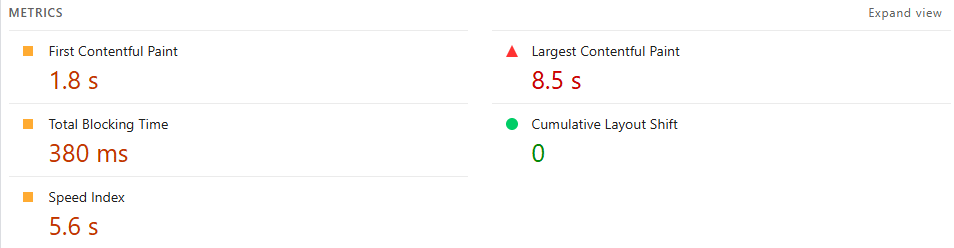
Practical fix: resize images to the maximum size they actually display at, then compress them properly. Serve modern formats like WebP where possible and ensure responsive image sizes are working correctly. If you use lazy loading, do not lazy load the main LCP image, it can delay the most important paint. Put upload rules in place so new content does not quietly undo your optimisation work.
6) Missing CDN, or CDN configured poorly
A CDN is not just for huge brands. If you serve visitors across the UK and beyond, a CDN can reduce latency and speed up delivery of images, scripts, and styles. Without it, your site depends entirely on one server location and one connection path.
A misconfigured CDN can also cause problems, such as caching the wrong things or failing to cache assets that should be cached. That leads to inconsistent performance where the site feels fast sometimes and slow other times.
Practical fix: set up a CDN for static assets, confirm correct caching headers, and verify that assets are being served from the edge. If you use a security layer, check that it is not adding avoidable delays. One practical example is improving performance for London traffic when the origin server is outside the region, a CDN often improves perceived speed without changing the site itself.
7) Caching gaps, including slow with caching enabled
Many owners say their site is WordPress slow with caching enabled because caching is not actually working the way they think it is. Page caching only helps if the cache is being served and the page can be cached. Logged in users, pages with certain cookies, and pages with frequent personalised elements can bypass cache.
You can also have caching in place, but still suffer due to heavy assets. Caching does not shrink images, and it does not remove render blocking scripts. It simply reduces the server work needed to generate each page.
Practical fix: confirm cache hits, not just that a plugin is installed. Ensure browser caching headers are set for static assets and that you are not constantly purging cache for routine updates. If you run WooCommerce or membership features, use a caching setup that respects those rules rather than trying to force cache on everything.
8) Database bloat and slow queries
WordPress relies on the database for content, settings, and much of the plugin ecosystem. Over time, sites collect post revisions, expired transients, spam entries, old plugin tables, and logs. The larger and messier the database becomes, the more work is required to fetch and assemble the page.
This can show up as slow admin screens and slower front end loads, especially on sites with eCommerce, large content libraries, or heavy filtering. It also makes backups, updates, and general maintenance more error prone.
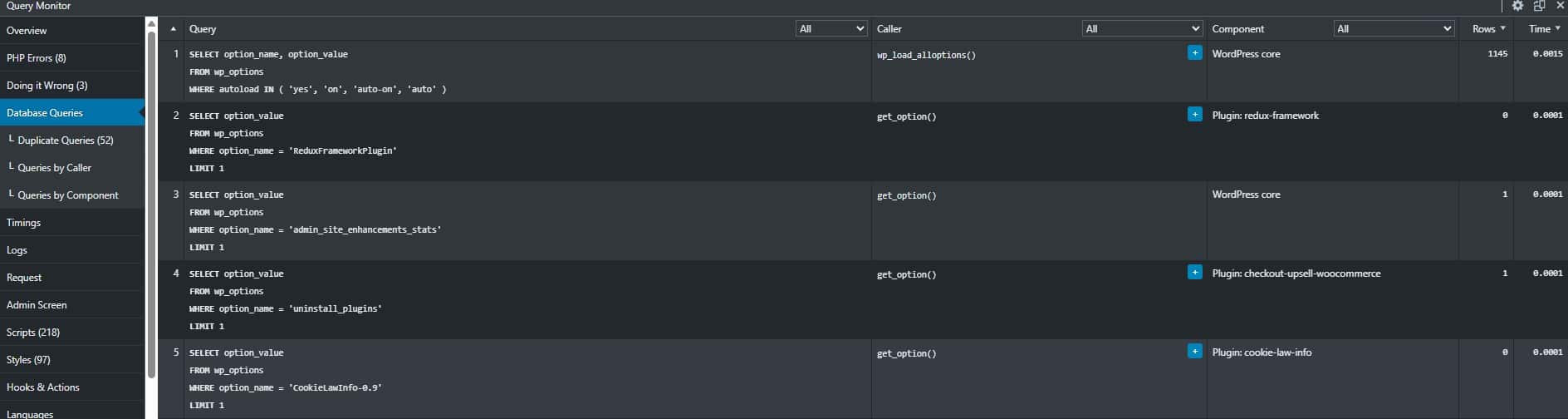
Practical fix: clean up revisions and expired transients, remove unused plugins properly, and optimise database tables. If you have query heavy features, consider object caching and better database resources. Treat database maintenance as a quarterly routine, not a one off emergency, because performance degradation is usually gradual.
9) Third party scripts, tracking, and embedded widgets
Marketing tools can quietly slow everything down. Analytics add ons, heatmaps, chat widgets, scheduling widgets, embedded maps, and social feeds often load external scripts that block rendering or occupy the main thread. Even when these tools are useful, loading them everywhere is rarely necessary.
This is a common cause of slow responsiveness, where the page looks loaded but clicks feel delayed. It can also contribute to layout shifts when widgets load late and push content around.
Practical fix: audit third party scripts and assign them a job. If a tool only supports conversion on specific pages, load it only on those pages. Delay non critical scripts until after the main content is visible. A straightforward example is moving heavier tracking to key landing pages rather than forcing it onto every page.
10) Fixing the wrong things first
Many performance efforts fail because they chase minor improvements while ignoring what users actually feel. If you optimise small files but your LCP image is massive, you will not see meaningful gains. If you minify everything but your TTFB is slow, the page will still start late. If you cache pages but your scripts block interactions, the site will still feel sluggish.
The most commercially sensible approach is to prioritise LCP (loading), INP (responsiveness), and the underlying server response time that supports them. That aligns improvements with what impacts enquiries and conversion rate.
Practical fix: measure, pick one primary bottleneck, fix it, then retest. Use PageSpeed Insights for a fast diagnostic view, then validate with real user behaviour in analytics. Build a simple performance checklist for updates so new plugins, templates, and media do not reintroduce the same problems.
How Dope Studio Can Help
Speed problems do not get solved by adding more tools. They get solved by isolating the bottleneck and fixing it properly. Dope Studio provides hands on WordPress performance work that covers Core Web Vitals auditing, hosting and server stack guidance, image optimisation, theme and builder clean up, plugin rationalisation, caching and CDN configuration, and database performance improvements. Where speed issues are tied to poor build decisions, we also rebuild templates with performance and conversion in mind, so you get a faster site that is easier to maintain.
If you want a structured optimisation pass with clear technical actions and measurable outcomes, start here: Web Design & Development
The Bottom Line on WordPress Speed
If you are asking why is my WordPress website slow, stop guessing and start diagnosing. In most cases, speed problems come from a single primary constraint: slow server response time, heavy templates, oversized images, or plugin and script bloat. Fixing the biggest bottleneck first is what produces meaningful improvements in real world loading and responsiveness.
Start by measuring before you change anything. Use Google PageSpeed Insights to check your Core Web Vitals and identify your LCP element, then cross-reference with GTmetrix for a detailed waterfall view of exactly which assets and requests are slowing your page down. Between the two tools, you will have a clear picture of where the problem actually is before you touch anything.
The commercial goal is not a perfect lab score, it is a site that loads quickly on mobile, feels responsive, and converts visitors into enquiries. A disciplined performance pass, measured against LCP, INP, and server response time, protects your SEO, improves paid campaign efficiency, and reduces friction that quietly costs you leads.
FAQ
Why is my WordPress site slow on mobile but seems fine on desktop?
Mobile devices have slower processors and are more sensitive to heavy JavaScript and large images. If your first screen relies on a large hero image, a slider, or multiple scripts, mobile performance will drop first. Test mobile results in PageSpeed Insights and reduce above the fold weight.
Why is WordPress slow on shared hosting?
Shared hosting means shared resources. When the server is busy, your site’s response time increases and pages feel slow even when you do nothing. For many business sites, upgrading hosting delivers the biggest single speed improvement.
Why is my WordPress admin slow?
A slow dashboard is usually caused by heavy plugins, background tasks, database bloat, or limited server resources. Page caching does not improve wp-admin, so the fix is typically plugin clean up, database maintenance, and better hosting resources.
Why does my WordPress site take so long to load even with caching enabled?
Caching only helps when it is serving cached pages and your cache is not constantly being bypassed or purged. It also does not fix heavy images, bloated themes, or slow third party scripts. Confirm cache hits, then reduce the assets that dominate LCP and responsiveness.
How do I speed up my WordPress website without breaking it?
Work in the right order: measure first, fix the biggest bottleneck, then retest. Start with server response time, then images, then theme and plugin weight, then caching and CDN configuration. If you want it handled safely end to end, Dope Studio can audit and implement changes using a staging first approach.
Is WordPress slow by default compared to Wix or Squarespace?
WordPress is not inherently slow, but it is more flexible, which means it is easier to make slow with heavy themes, plugins, and cheap hosting. A well built WordPress site on good infrastructure can be extremely fast. Platform comparisons usually come down to build and hosting quality, not the CMS label.